Pikka AI
Loading now.....
Loading now.....
Pikka Speech can send its live captions into a Zoom meeting, so everyone in the meeting reads along in Zoom itself. You hear the speaker as usual; the text appears under the video. The original words are sent first, and the translation follows as soon as it is ready.
Step 1 of 5
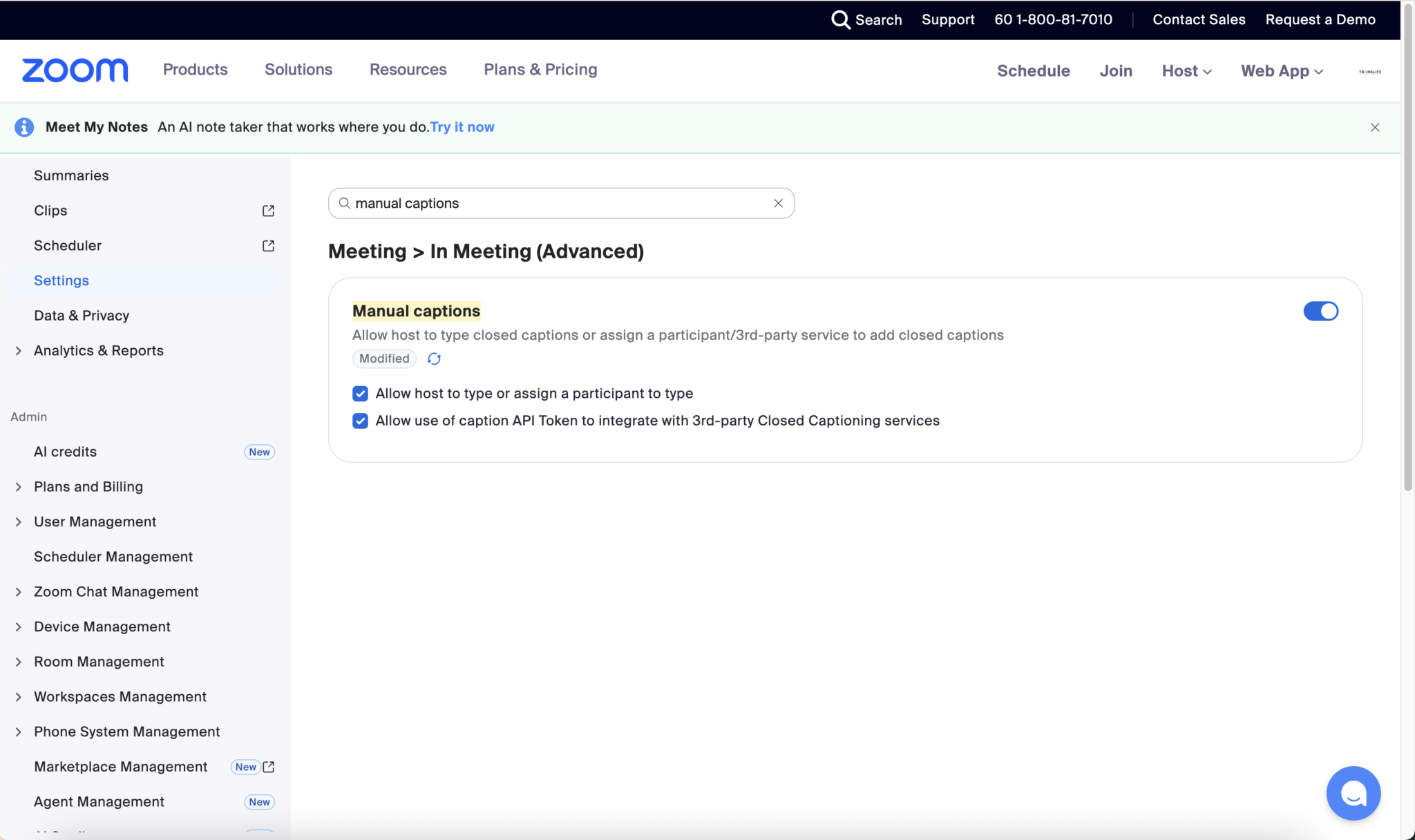
On the Zoom website: Settings → Meeting → In Meeting (Advanced). Turn on Manual captions and tick the caption API token box.
Pikka Speech sends caption text to your Zoom meeting. That is all it sends. It does not join your meeting as a participant, it does not record anything, and it never receives audio or video from Zoom.
Pikka Speech listens to the microphone, sound card or audio device that you connect in Pikka Speech itself — on your laptop, in the room, or from a mixing desk. It turns that speech into text, translates the text, and passes the text on to Zoom. Your Zoom meeting is only a place where the finished text is shown.
Attendees who prefer their own language can still open the Pikka Speech listener page for the same event and choose any of the available languages there. Zoom shows one language, chosen by the host, alongside the original speech.
Zoom only accepts captions from another service if the account that hosts the meeting allows it. This is a one-time setting. Sign in on the Zoom website, not in the Zoom app.
Both ways send the same captions. Choose whichever suits you. In Pikka Speech you will find them in the same place: open your event, go to the host or speaker controls, and find the card called Send captions to Zoom.
This is what the Pikka Speech app on the Zoom App Marketplace is for. You connect once, and after that you simply choose a meeting from a list.
The connection belongs to your Pikka Speech account, so it still works when you sign in from another computer. You only have to do it once.
This works on any Zoom account, with nothing installed. It is the quickest option for a meeting you started on the spot, and a useful fallback.
That copied link is private: anyone who has it can put text into your meeting. Do not share it, and copy a fresh one if you think it has been seen. It is not the same as the link people use to join your meeting.
Anyone in the meeting selects Show Captions in Zoom to read the text. It also appears in Zoom’s full transcript panel. Each caption is labelled, so it is clear which line is the original speech and which is the translation.
One honest limitation: Zoom shows every caption as its own separate line and cannot change a line once it has appeared. Pikka Speech’s own live page can correct and extend a sentence while someone is still speaking, so text there settles as it goes. In Zoom the same speech arrives as short finished phrases instead, and a line can show up a moment later than it does in Pikka Speech. Nothing is lost — it simply reads differently. If you want the smoothest live reading experience, point people at the Pikka Speech listener page as well.
To stop the captions, select Stop sending captions in Pikka Speech. Captions also stop when the event ends or the Zoom meeting ends. Text that Zoom has already shown stays in that meeting’s captions and transcript; Pikka Speech cannot take it back.
To remove the connection altogether, open Manage Zoom connection and select Disconnect Zoom account. Disconnecting deletes the stored connection, including the saved permission to reach your Zoom account, and stops any captions that were being sent through that account in every Pikka Speech event. You can connect again later.
You can also do it from Zoom’s side: sign in to the Zoom App Marketplace, open Manage → Added Apps, and remove Pikka Speech. Zoom tells us when you do, and we delete the stored connection.
When you connect a Zoom account, Pikka Speech uses only what it needs to put captions in the right meeting: the list of your scheduled meetings so you can choose one, the details of the meeting you choose, that meeting’s caption token, and basic identity for your Zoom account so we can show you which account is connected and keep it tied to your Pikka Speech account. Pikka Speech never receives your meeting’s audio, video, chat or participant list, and never records your meeting. Zoom tokens are stored encrypted on our server, are never shown in your browser and are never given to anyone else. Disconnecting in Pikka Speech, or removing the app in Zoom, deletes them. See the privacy policy and the terms of service for the full details.
Email info@pikkaai.com and tell us what you saw, which of the two setups you used, and roughly when it happened. Please do not send us your caption link or any password. Pikka Speech is operated by Translife Group Sdn. Bhd. Support hours are Monday–Friday, 9am–6pm Malaysia time. We’ll send a first reply within 24 hours.